How to Bulk Add or Remove Tags in Shopify: 4 Methods Compared
 Siva Baskara
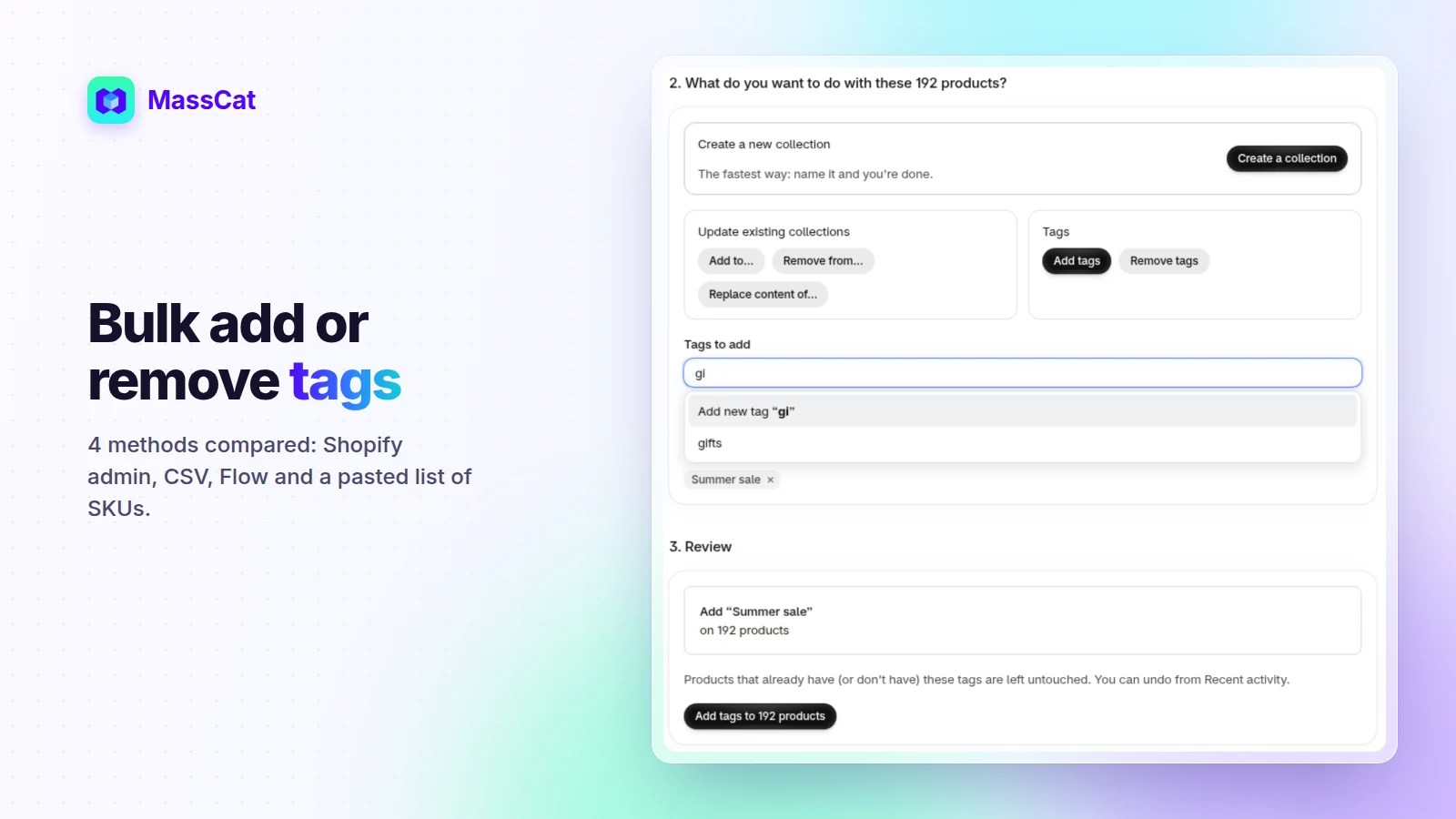
Tags look small, but on Shopify they drive search and filters, feed collection conditions, trigger Flow automations and often decide which products get a "Sale" badge. So sooner or later you need to tag (or untag) hundreds of products at once. Shopify gives you three ways to do it, and each one stops somewhere different. Here are the four methods, step by step, with the catch of each one.
The short answer
- The products share a filter (vendor, type, status, an existing tag): use the admin bulk action. Free and fast.
- You're already editing a product export: the CSV
Tagscolumn, knowing it replaces the whole tag list. - Tags should follow a rule (new products, low stock): Shopify Flow.
- The products come as a list of SKUs, barcodes or titles from a spreadsheet: paste the list into an app such as MassCat.
1. The Shopify admin bulk action
- Go to Products and filter the list (vendor, product type, status, tag, collection...).
- Tick the checkbox at the top of the list. Beyond 50 products, open the 50 selected menu and choose Select all results.
- Click More actions › Add tags (or Remove tags), type the tags and confirm.
The catch: it only works on products you can isolate with a filter. There's no box to paste a list of SKUs, so a buyer's selection of 300 products spread over ten vendors means ticking them one by one, page after page.
2. The product CSV and its Tags column
- Export your products from Products › Export.
- Edit the
Tagscolumn in a spreadsheet. Several tags go in one cell, separated by commas. - Import the file with Overwrite products with matching handles ticked.
The catches:
- The cell replaces the whole tag list. To add
black-friday-2026, the cell must also keep every existing tag, or they're gone. - Every column in the file overwrites the product. Shopify recommends testing on a few products first.
- The file is keyed by handle, not SKU. To tag a supplier's SKU list, you first have to match each SKU to its row (a VLOOKUP, usually).
3. Shopify Flow
Flow has two actions, Add product tags and Remove product tags. They run on the product that triggered
the workflow: for example a product being created or its inventory changing. Typical uses: tag every new product
new-arrival, tag low-stock products, remove a tag when a product sells out.
The catch: Flow is made for rules that keep running. It isn't the tool for "tag these 400 existing products today".
Shopify's AI assistant, Sidekick, can also edit products from a chat request. We haven't tested it on tags yet; on collections, our 500-SKU test worked in batches of 250.
4. From a list: paste SKUs, barcodes or titles
When the list comes from outside Shopify (a buyer, a supplier, a merchandising plan), the fastest path is to paste it as is. That's what MassCat does:
- Paste up to 5,000 SKUs or barcodes (or 2,000 product titles) straight from Excel. Duplicates are ignored and unknown references are listed before anything changes.
- Add tags: suggestions come from the tags already in your store, so no
Black-Fridaynext toblack-friday. Existing tags are kept. - Remove tags: MassCat lists the tags found on the selection with how many products carry each one. Pick the ones to remove.
- Undo: every change is in your activity history and can be reverted.
No list? Build the selection with filters (vendor, stock, price, metafields) and tag it the same way. More details on the bulk tagging guide.
Which method for which job
| Your situation | Best method |
|---|---|
| Products that share a vendor, type or tag | Admin bulk action |
| A list of SKUs, barcodes or titles from a spreadsheet | Paste the list into MassCat |
| Remove a campaign tag from every product | Admin bulk action (filter by the tag) or MassCat |
| Already reworking a full product export | CSV Tags column (keep the existing tags) |
| Tag products automatically when something happens | Shopify Flow |
A Black Friday example
Your buyer sends 350 SKUs for the sale. Paste them into MassCat, add black-friday-2026: your theme's badge, a filter
and a collection with the condition "tag is black-friday-2026" pick them up at once. On Monday, filter the product list by that tag
and remove it in one bulk action, or paste the same list into MassCat and choose Remove tags. More ideas in our
Black Friday collections guide.
Conclusion
If you can filter the products, Shopify's own bulk action is all you need. If your products come as a list, pasting that list beats rebuilding it as a filter or a CSV. Try MassCat on your store: the Free plan lets you update 50 products to see it work on your own catalog.