How to Bulk Create Collections in Shopify (and Fill Them) Without a CSV
 Siva Baskara
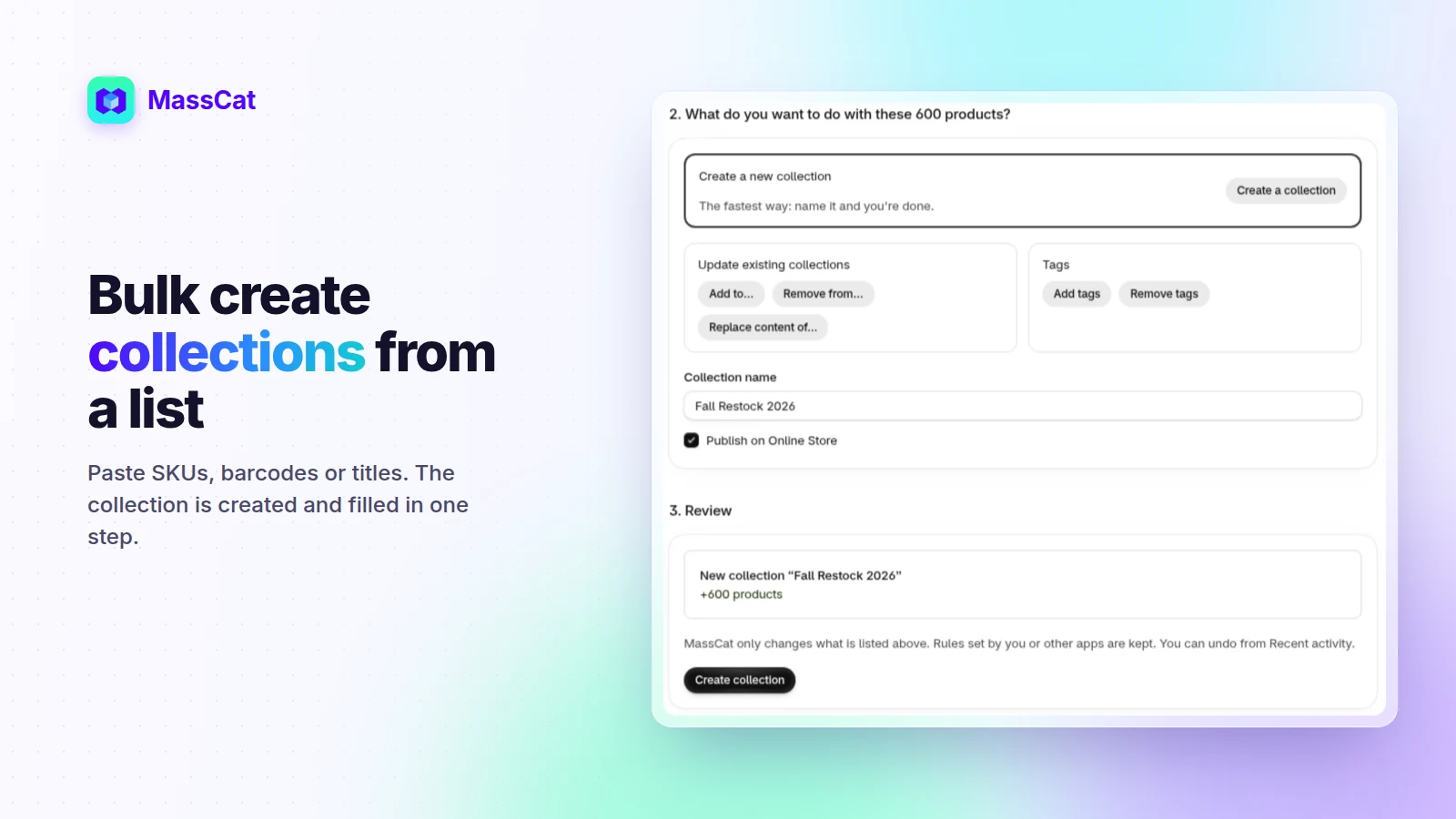
Creating one collection in Shopify takes a minute. Creating twenty, or one collection that holds 400 products from a buyer's spreadsheet, takes an afternoon. Shopify has no "bulk create" button, but there are five ways to get there, each with its own catch. Here is what each method really does, where it stops, and which one fits the list you have.
The short answer
- One collection per tag, vendor or type (dozens of rule-based collections): create automated collections, by hand or with a CSV tool.
- One collection from a list of SKUs, barcodes or titles (a campaign, a supplier drop): paste the list into an app that creates and fills the collection in one step.
- New products into existing collections automatically: Shopify Flow.
- Products and collections created together during an import: the product CSV's
Collectioncolumn, with its limits.
1. The Shopify admin: one collection at a time
In Products › Collections › Add collection, you name the collection, then add products. With Shopify's new collections model (2026), a collection can mix sources: conditions, hand-picked products or variants, other collections and exclusions. On stores still on the legacy model, you pick Manual or Automated when you create it.
The catch: hand-picking products means searching and ticking the products on the current page of results. There is no field to paste a list of SKUs, and you repeat the whole thing for every collection.
2. The product CSV and its Collection column
Shopify's product CSV accepts one extra column called Collection. Put a collection name on a product's row and,
during the import, Shopify adds the product to that collection, creating the collection if it doesn't exist yet.
The catches, all from Shopify's own documentation:
- One collection per product. A product that belongs in "Black Friday" and "Homepage" needs another method.
- Not included in exports. You can't export, edit and re-import collection membership.
- The full product format. The file must follow Shopify's product CSV structure, and importing over existing products can overwrite their data.
- Collections with conditions only take products that meet those conditions.
It works well when you're importing new products anyway. For reorganizing an existing catalog, it's risky.
3. Automated collections by tag, vendor or type
If every collection follows a rule ("tag is summer", "vendor is Northwind"), create automated collections, or
collections with a condition source on the new model. They fill and update themselves.
The catch: you still create each collection by hand, and the products need the right tag first. For dozens of tag-based collections, a CSV-based bulk tool or an app that generates rule-based collections saves real time. And when the selection is a decision rather than a rule (a campaign, a homepage edit), there is no tag to build it on, unless you tag the products first.
4. Shopify Flow: automation, not creation
Flow's Add product to collections action adds a product to collections when something happens: product created, status changed, back in stock, and so on.
The catch: it only works on collections that already exist. Flow can't create a collection, and it acts on the product that triggered the workflow, not on a list you have.
5. From a list: create and fill a collection in one step
Most bulk collection work starts with a list: a buyer's Black Friday selection, a supplier's shipment, a merchandising plan. That's the case MassCat is built for. Paste the list, choose Create a collection, name it, done.
- Any identifier: SKUs, barcodes or product titles, copied straight from Excel. Duplicates are ignored.
- Checked before anything changes: references that match no product are listed, so you can fix the list first.
- Several collections at once: add the same products to existing collections in the same action, or create a new one.
- Products or variants: on the new collections model, put only the variants in your list.
- Undo: every change is in your activity history and can be reverted.
The catch: one new collection per action. To create twenty collections from twenty different lists, you run it twenty times, about a minute each. For twenty rule-based collections, method 3 is the better fit.
Which method for which job
| Your situation | Best method |
|---|---|
| One collection per tag, vendor or type | Automated collections (by hand or with a CSV tool) |
| A collection from a list of SKUs, barcodes or titles | Paste the list into MassCat |
| The same products in several collections | MassCat (several collections in one action) |
| Importing new products and grouping them | Product CSV with the Collection column (one per product) |
| New products added to collections automatically | Shopify Flow |
Conclusion
Shopify doesn't have one "bulk create collections" feature: rules, CSV imports and Flow each cover part of the job. When your collection starts as a list someone handed you, the fastest path is to paste that list and let the collection be created and filled in one step. Try MassCat on your store: the Free plan lets you update 50 products to see it work on your own catalog.